
Managing a large music library can be frustrating when your files show names like final_master.mp3, videoplayback.m4a, or random strings instead of the correct song title or artist when they play in your music app. Many users face the same problem: hundreds of tracks downloaded, ripped, or imported, yet none display meaningful information. And manually fix them? It’s almost impossible, especially when you have a huge music library — editing everything by hand is extremely time-consuming and exhausting.
That’s where smart automation becomes essential. So, what is the best way to rename multiple files at once without spending hours doing it yourself? In this guide, we’ll show you how to tag and rename music files automatically using music metadata editors and built-in system tools, helping you clean up messy filenames, organize your library consistently, and save a significant amount of time in the process.
Rename Music Files Automatically on Windows
If you are a PC user managing a massive local library, there are 2 efficient tools that can help you rename music files automatically. For a detailed guide on how to organize your entire music library, check out our article.
ID3Genius – Best Music Metadata Editor
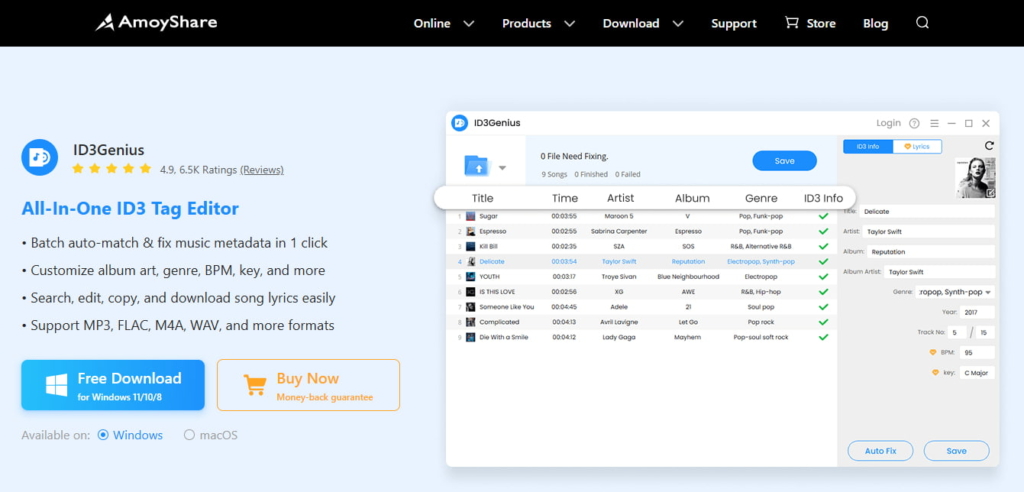
ID3Genius is a smart, intuitive automatic music tag editor built to make batch renaming effortless. It excels at fixing missing or incorrect music metadata and renaming files based on metadata automatically, and you can customize the naming rules to match your preferred structure, giving you full control over how your library is organized.
With 1 click, the MP3 metadata tagging tool pulls accurate song titles, artists, albums, cover art, genres, and more from trusted databases like Spotify, MusicBrainz, and Discogs. Besides, it supports MP3, FLAC, M4A, WAV, and other popular audio formats, making it ideal for any music library. Whether your playlist includes famous songs from SoundCloudd, old DJ sets, or tracks imported from old CDs and recordings, ID3Genius batch music file renamer easily turns chaotic filenames into a clean, searchable music library.
Besides helping you quickly fix metadata and rename music files, ID3Genius has recently added exciting new features! It can update extended ID3 tags like Composer, Remixed By, Label, ISRC, Comments, and Rating, and instantly analyze BPM, Key, Camelot, Energy, Danceability, and more — with CSV export for deeper library insights. Plus, smart file management makes organizing tracks into Artist/Album folders faster than ever, with customizable columns and Auto Save.
- Flexible file renaming based on music metadata
- Batch rename music files with just 1 click
- Automatically fix missing or wrong music metadata
- Pulls accurate info from trusted music sources
- Works with MP3, M4A, FLAC, WAV, and other popular formats
- Super beginner-friendly and completely safe to use
- Not yet available on mobile devices
Install ID3Genius and take your music library to the next level now!
ID3Genius
Auto-fetch and update music metadata
- for Windows 11/10/8
- for Mac OS X 14+
- for Android
How to automatically rename music files with ID3Genius?
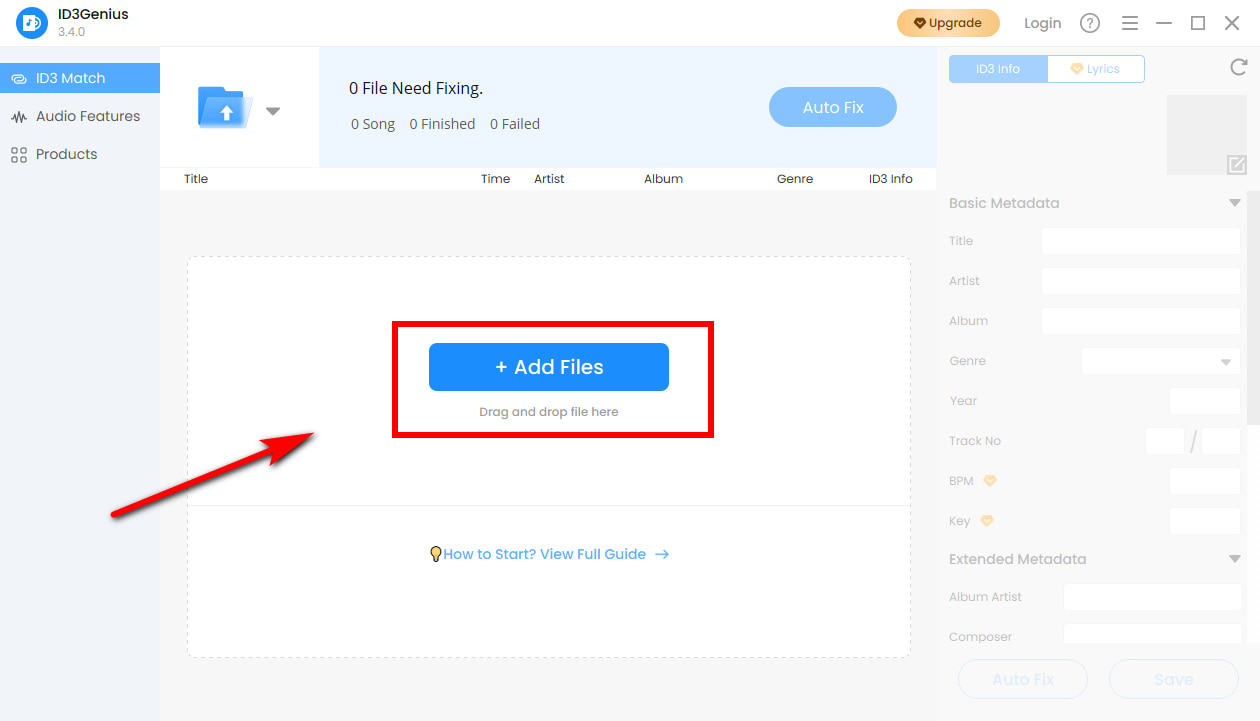
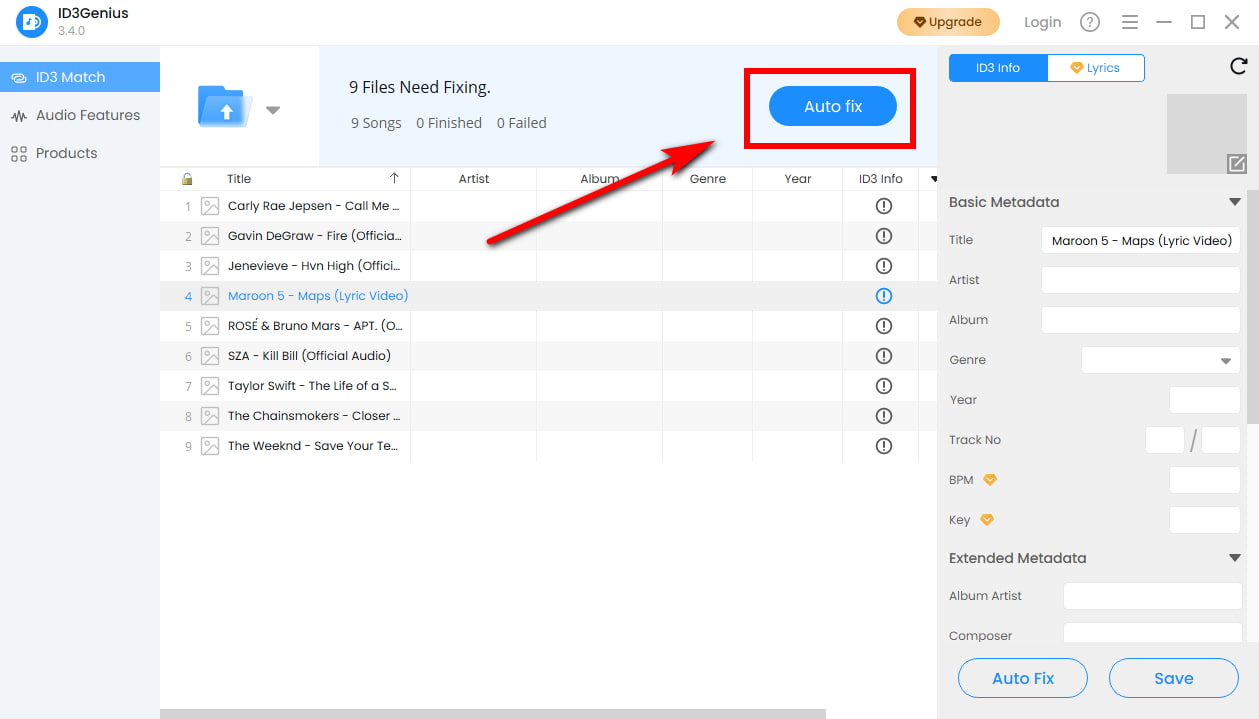
- Add Your Music Files: Click the “Add File” button or drag and drop your tracks into ID3Genius music file renamer. You can add individual songs or an entire folder to batch-process multiple tracks at once, and it supports MP3, M4A, FLAC, WAV, etc.
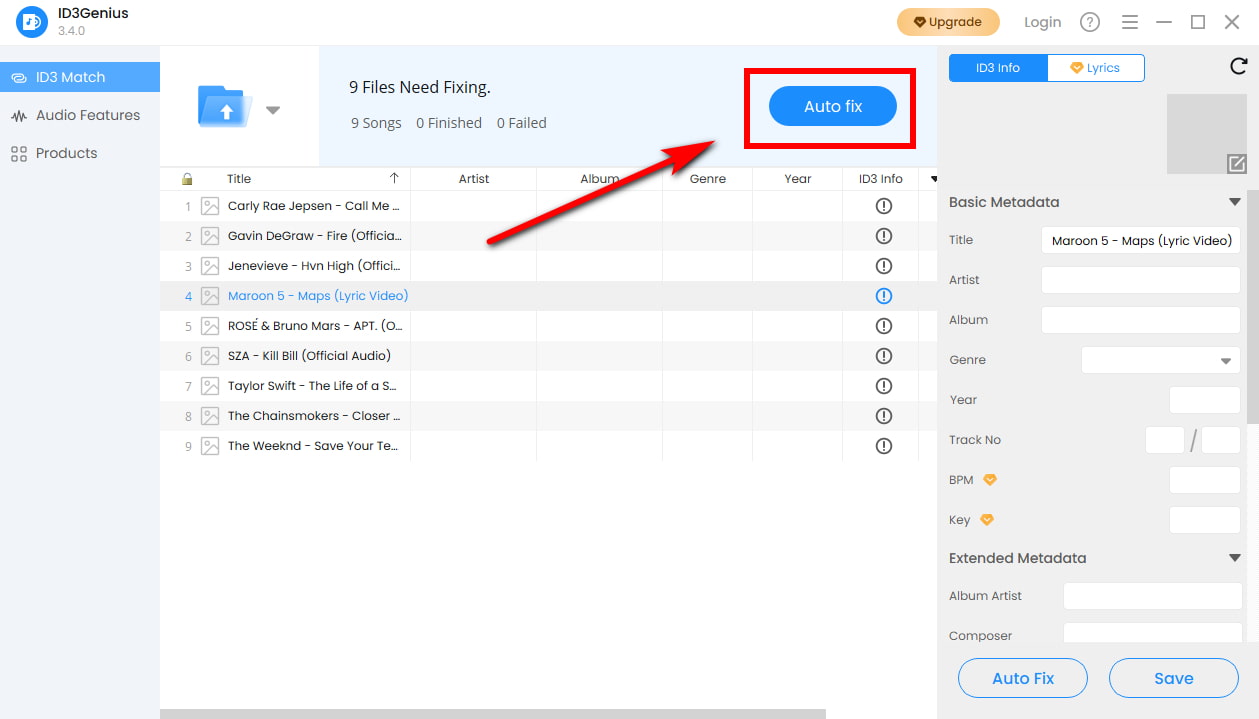
- Automatically Fix Song Tags: Click “Auto Fix” to let ID3Genius scan your music files and retrieve accurate metadata from trusted online databases. The MP3 renamer immediately updates missing or incorrect fields, such as song title, artist, album, genre, track number, and cover art, ensuring your filenames are generated correctly. You can also manually fine-tune individual tracks if needed.
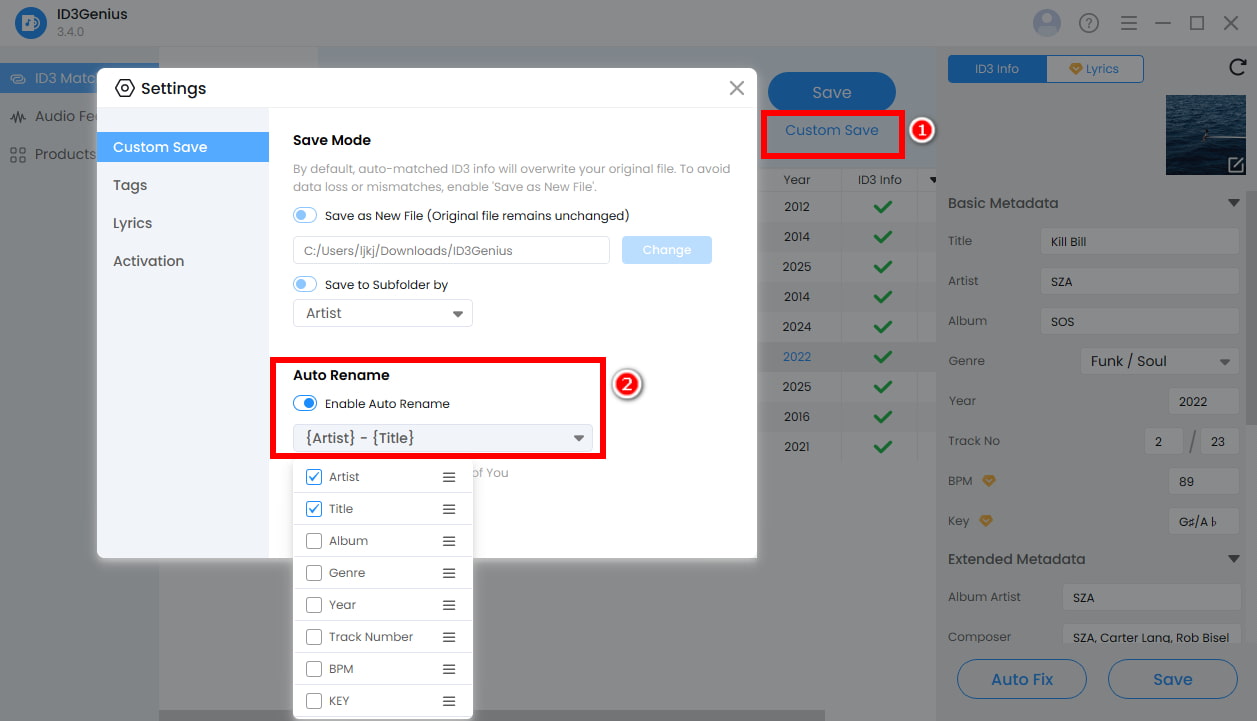
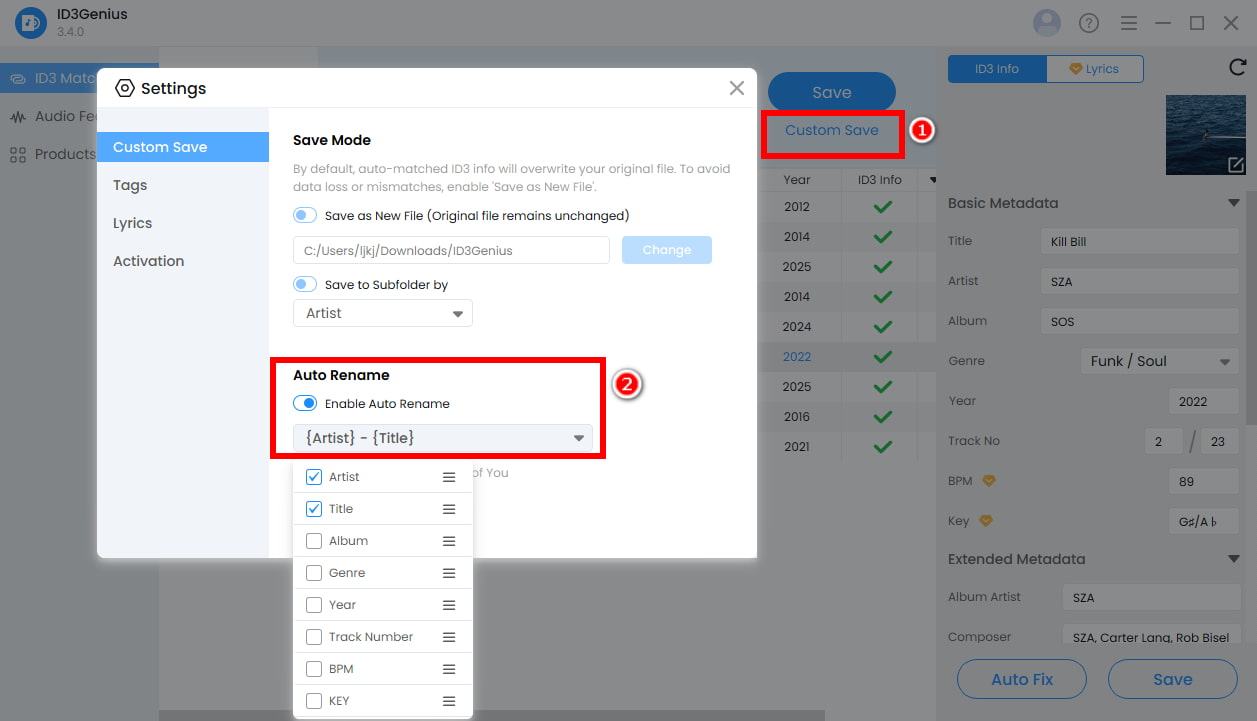
- Set Naming Rules and Rename Files: Once metadata is updated, click “Custom Save” to enable Auto Rename, then select your preferred naming pattern (e.g., Artist-Album-Track Number, Artist-Title). Hit “Save” again, and ID3Genius will instantly rename all music files according to the chosen structure, creating a clean, easily searchable, and consistent music library.
Tips: If you’d like lyrics with your music files, head to the Lyrics tab. Enter the song’s title and artist, then click Match Lyrics to pull accurate, synced lyrics right away. You’re free to edit, copy, or download the results before saving them to your audio files.
Built-in File Explorer – Auto Numbering
For a native solution, Windows File Explorer lets you batch rename multiple music files quickly and for free, using a consistent base name with automatic numbering. It’s easy to use and requires no additional software.
How to batch rename music files using File Explorer?
- Organize your music files in one folder. Select the songs you want to rename (use Ctrl+A for all). Right-click (Press F2) and select “Rename.”
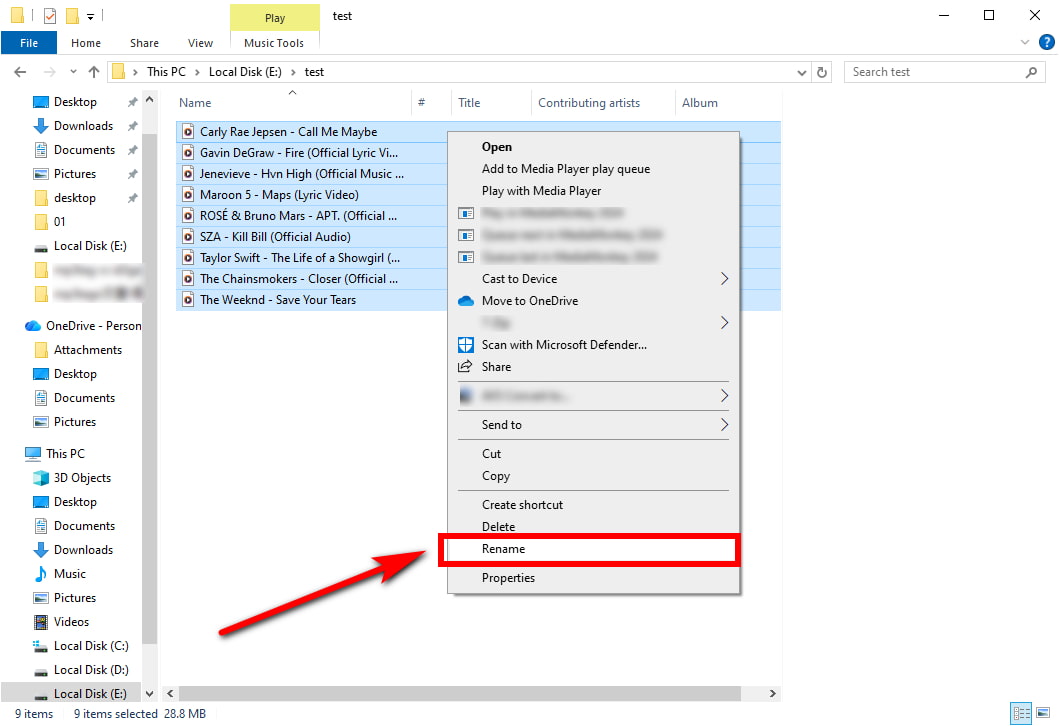
- Type your desired primary title (e.g., “The Best of 90s”) and confirm with Enter. File Explorer will then rename every selected track, automatically assigning sequential numbers so that each filename is unique while maintaining a consistent and organized appearance.
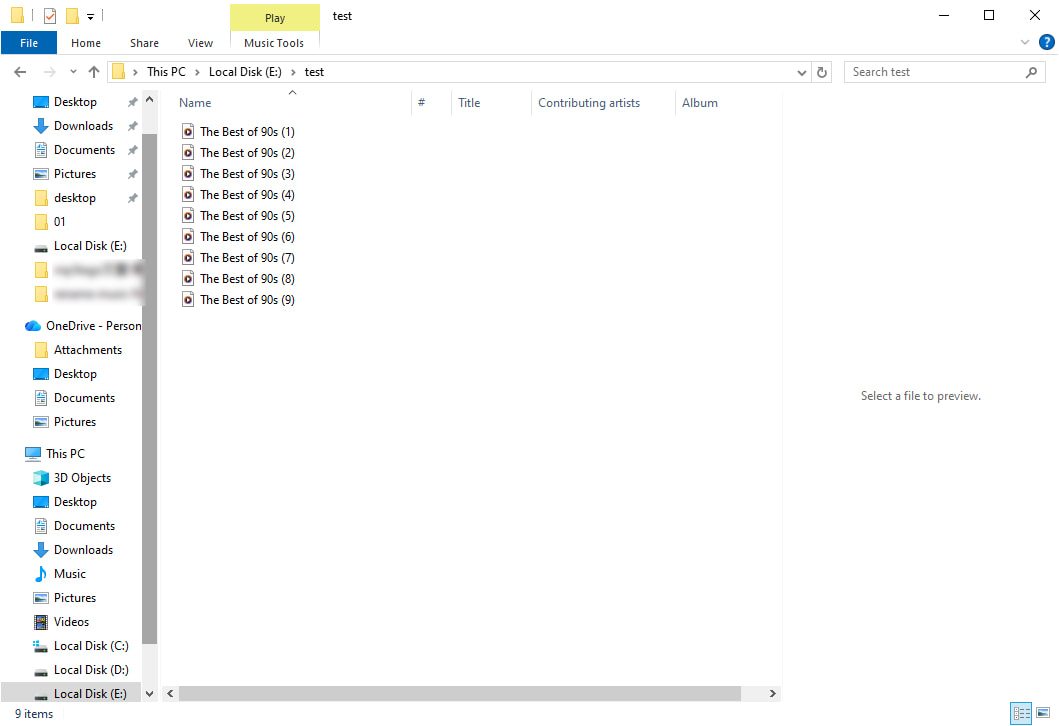
Tips: To undo a rename, press Ctrl + Z, and your files will instantly revert to their previous names.
- Built into Windows
- Fast and straightforward
- Allows consistent base names with automatic numbering
- Limited customization for naming patterns
- No integration with online music databases
- Cannot automatically fix missing or incorrect tags
How to Automate Renaming Files on a Mac
Mac users also have excellent options for taming their music libraries, from third-party intelligence to built-in utilities.
ID3Genius – Smart MP3 Renamer
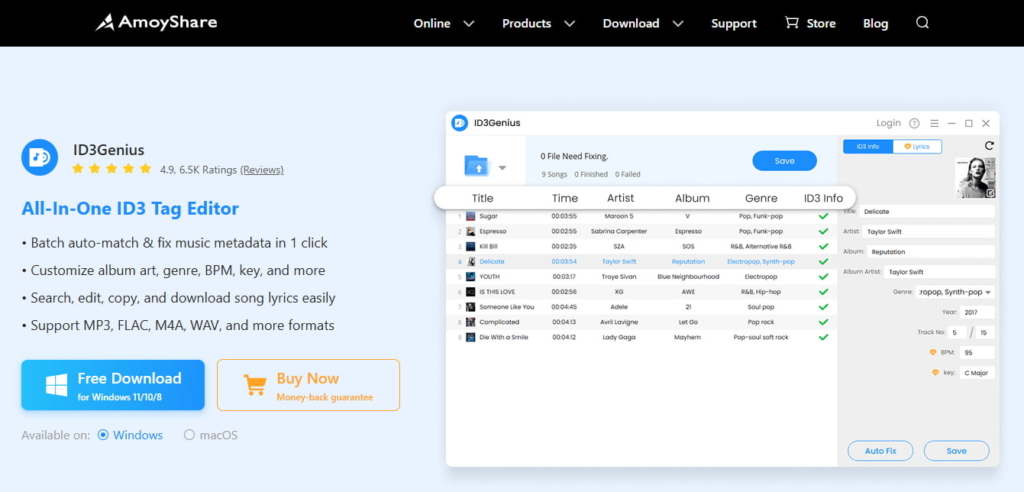
Managing an extensive music library on your Mac has never been easier thanks to ID3Genius. This powerful batch music file renamer automatically fixes missing or incorrect metadata using reliable music sources, then renames MP3 files from tags with your chosen naming rules — keeping your library consistent and organized.
The music tag editor supports all major formats, including MP3, WAV, M4A, and FLAC, making it perfect for playlists, DJ sets, or imported CD collections. Beyond renaming, ID3Genius MP3 renamer can analyze BPM and key, update extended ID3 tags, and even offers Auto Save and customizable views. With all these features, keeping your library clean, searchable, and Apple Music-ready is fast, simple, and stress-free.
- Supports custom renaming based on ID3 tags
- Batch rename multiple music files with 1 click
- Automatically detect and correct missing or incorrect metadata
- Pulls accurate track info from trusted music sources
- Supports MP3, M4A, FLAC, WAV, etc.
- Currently not available for mobile devices
Explore ID3Genius and take full advantage of its smart MP3 renaming tools!
ID3Genius
Auto-fetch and update music metadata
- for Windows 11/10/8
- for Mac OS X 14+
- for Android
How to rename music files automatically on Mac?
- Import Your Collection (Batch Ready): Load your tracks by either clicking the “Add File” button or simply dragging and dropping your audio files into the ID3Genius MP3 renamer. The application efficiently handles entire folders for bulk processing and supports all major formats like MP3, FLAC, M4A, and WAV.
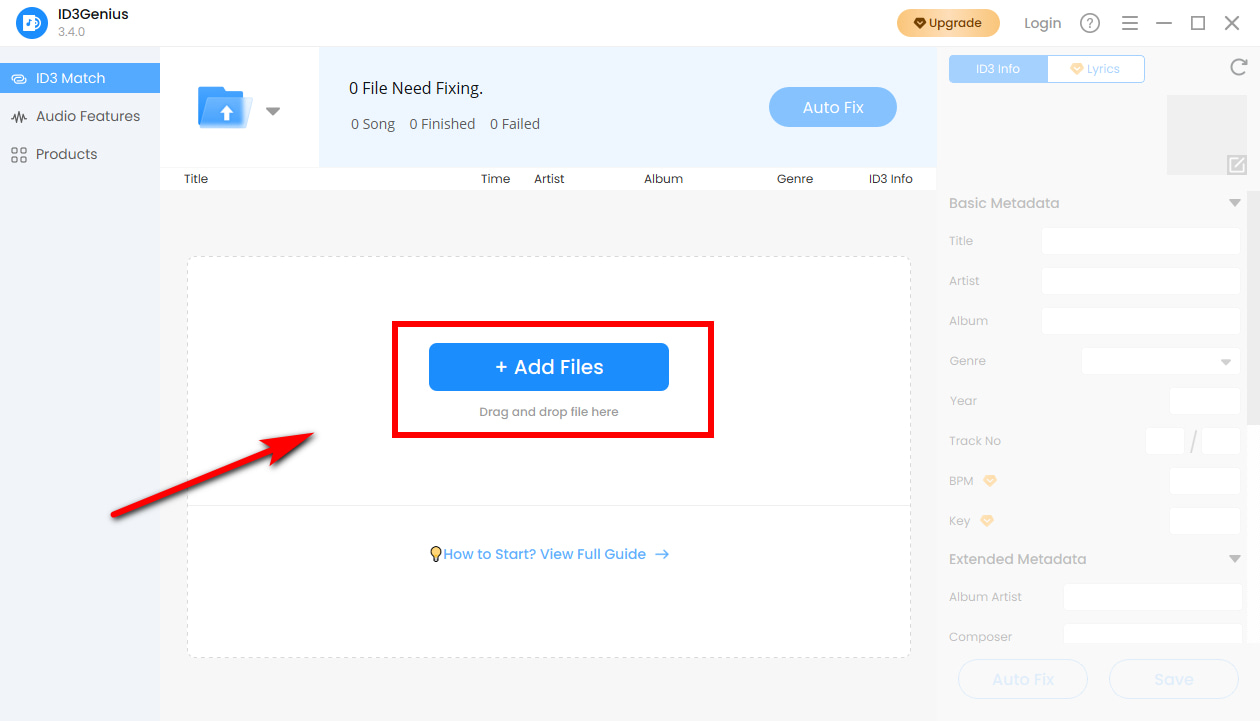
- One-Click Metadata Repair: Activate the core intelligence by clicking “Auto Fix.” ID3Genius immediately scans your music and connects to reliable online databases to repair missing or incorrect tags. Critical fields like title, artist, album art, and track number are instantly corrected, establishing the perfect, reliable foundation needed to generate accurate filenames. If necessary, individual tracks can be manually edited before saving.
- Apply Custom Naming Scheme and Finalize: Select “Custom Save” to enable the powerful Auto Rename function. Choose your desired naming template (such as [Artist] – [Title] or [Artist] – [Album] – [Track Number]) and then click “Save.” Your entire selection is instantly standardized, yielding a perfectly clean, consistent, and easily searchable music library.
Tips: Want lyrics included with your songs? This process is fast: Navigate to the “Lyrics” tab. After supplying the song title and artist details, click “Match Lyrics” to instantly retrieve the full, synchronized lyrics from our database partners. The music tag editor allows you to then refine, copy, or download the fetched lyrics as needed before applying them to your music files.
Finder – Built-in App
Mac users can leverage the Finder for built-in batch renaming without downloading extra apps. This native tool is a fast and free solution for the most common renaming tasks.
Here’s how to batch rename music files with Finder:
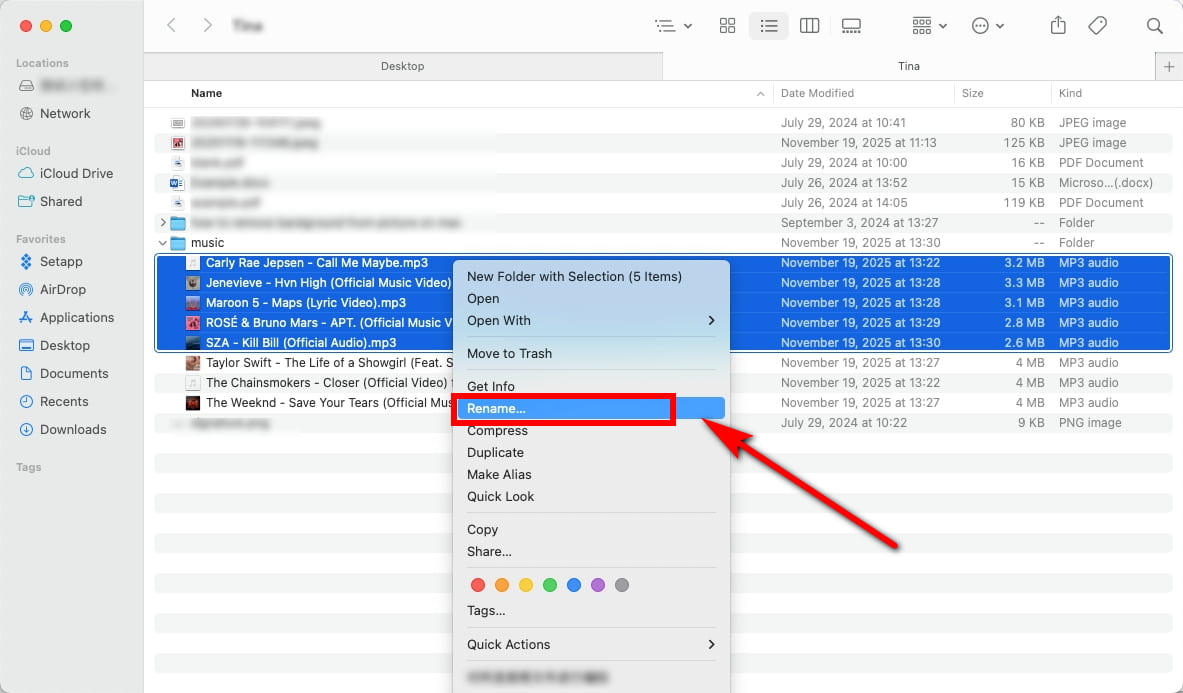
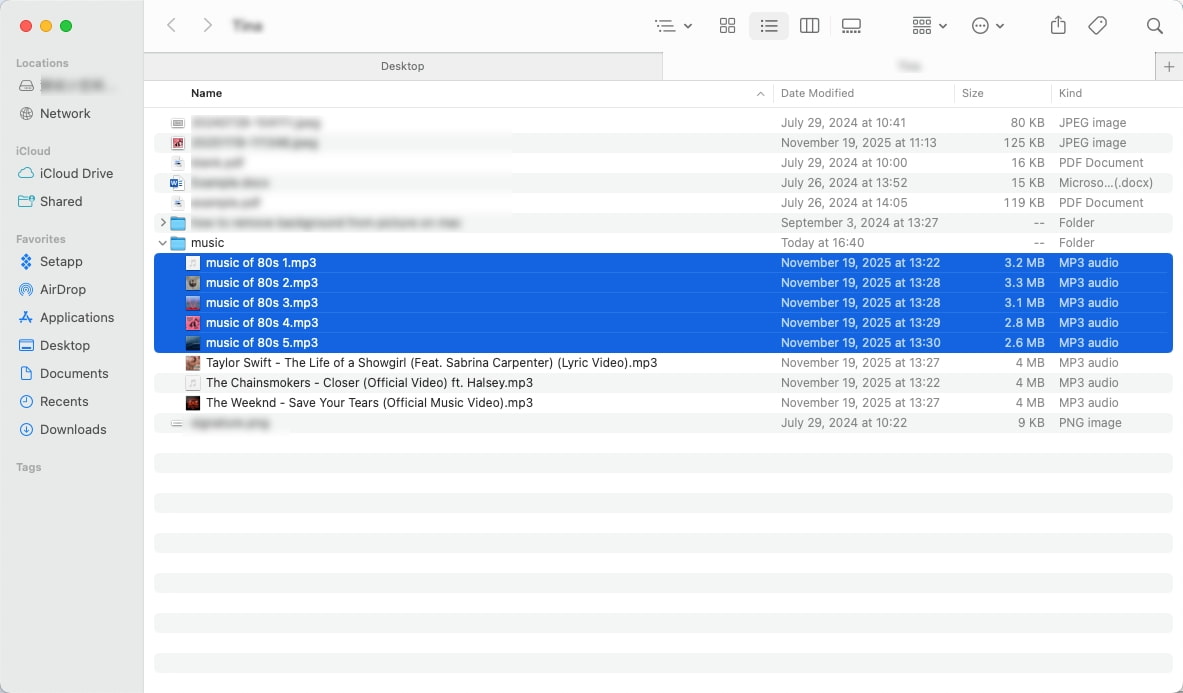
- Open Finder and select the music files you wish to rename. Right-click (or Control-click) and choose “Rename.”
- In the dialog box, select “Replace Text” to fix specific typos or “Format” to create a sequence like “Name_Index.” Then, click “Rename” to apply.
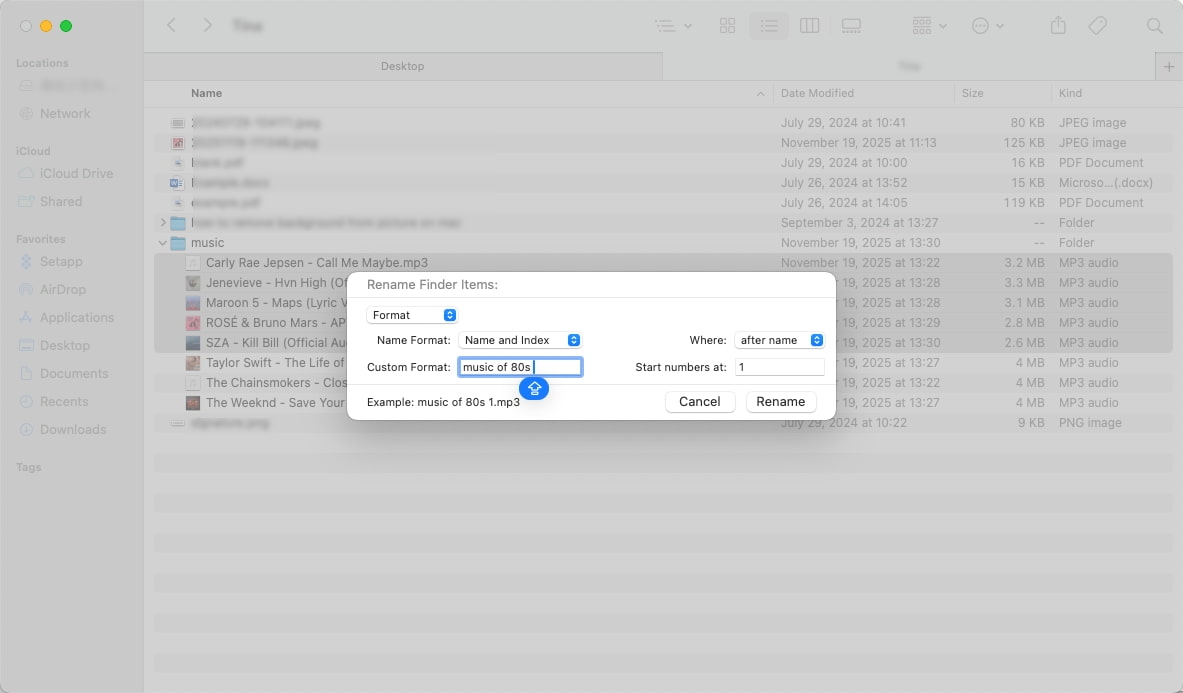
- You’ll immediately see all your music files renamed consistently.
- Free and accessible for all Mac users
- Supports batch renaming with options like Replace Text, Add Text, or Format
- Simple and user-friendly interface
- Cannot read or edit music metadata
- Not support automatic tag correction
- Limited naming patterns
- Cannot fix missing or incorrect metadata before renaming
Conclusion
Managing your music library doesn’t have to be a tedious chore. Whether you’re on a PC or a Mac, automating the renaming of music files can save you hours of manual work and keep your collection organized and easy to navigate. Tools like ID3Genius music file renamer make this process fast and simple, automatically fetching accurate metadata from trusted online databases and applying it to your files in just a few clicks. Even if you prefer built-in options like File Explorer or Finder, combining them with smart renaming tools can give you the best of both worlds: speed, accuracy, and simplicity.
By using these tools together, you can turn a messy pile of music files into a neatly organized library, making it easier to search, sort, and enjoy your favorite tracks.
Try ID3Genius today and see for yourself how quickly it can organize your music library with minimal effort.
ID3Genius
Auto-fetch and update music metadata
- for Windows 11/10/8
- for Mac OS X 14+
- for Android
FAQs About How to Batch Rename Files
How to automatically rename files in a folder on a Mac?
You can batch rename music files on a Mac easily with ID3Genius:1. Upload your music folder by clicking Add Files or dragging and dropping tracks.2. Click Auto fix to let ID3Genius retrieve accurate metadata (song title, artist, album, genre, cover art, etc.) from trusted online databases.3. Click Custom Save to enable Auto Rename, set your preferred naming pattern (e.g., Artist-Album-Track Number), and click Save. Your entire folder will be renamed consistently and automatically.
How to auto rename files in Windows?
On Windows, ID3Genius can help you tag and rename music files in minutes:1. Add your files or folder by clicking Add Files.2. Click Auto fix to automatically scan and update missing or incorrect metadata using reliable databases like Spotify and MusicBrainz.3. Enable Auto Rename, choose your naming pattern (Artist-Album-Track Number, Artist-Title), then click Save. All selected files will be renamed instantly and organized consistently.
Can I fix MP3 file names automatically?
Yes! With ID3Genius batch music file renamer, you can automatically repair and rename MP3 files without any manual effort. Simply add your MP3 tracks to the editor, click Auto fix to fetch accurate metadata from trusted online databases, and then enable Auto Rename with your preferred naming pattern. Once you hit Save, all your MP3 files will be renamed instantly, creating a clean, consistent, and easily searchable music library.
What's the best tag and rename software?
For anyone looking to efficiently manage a large music library, ID3Genius MP3 renamer is one of the best tag and rename tools available. It supports multiple formats like MP3, FLAC, M4A, and WAV, automatically fixes missing or incorrect metadata, and allows you to batch rename files based on custom naming rules. With one click, your music collection becomes organized, clean, and fully compatible with Apple Music and other players.